How to Set Up Content Staging and Review for WordPress
Editing content directly on your live WordPress site is risky. Content staging lets you test changes safely, avoid mistakes, and set up a clear review workflow, so your team can publish faster without breaking anything.

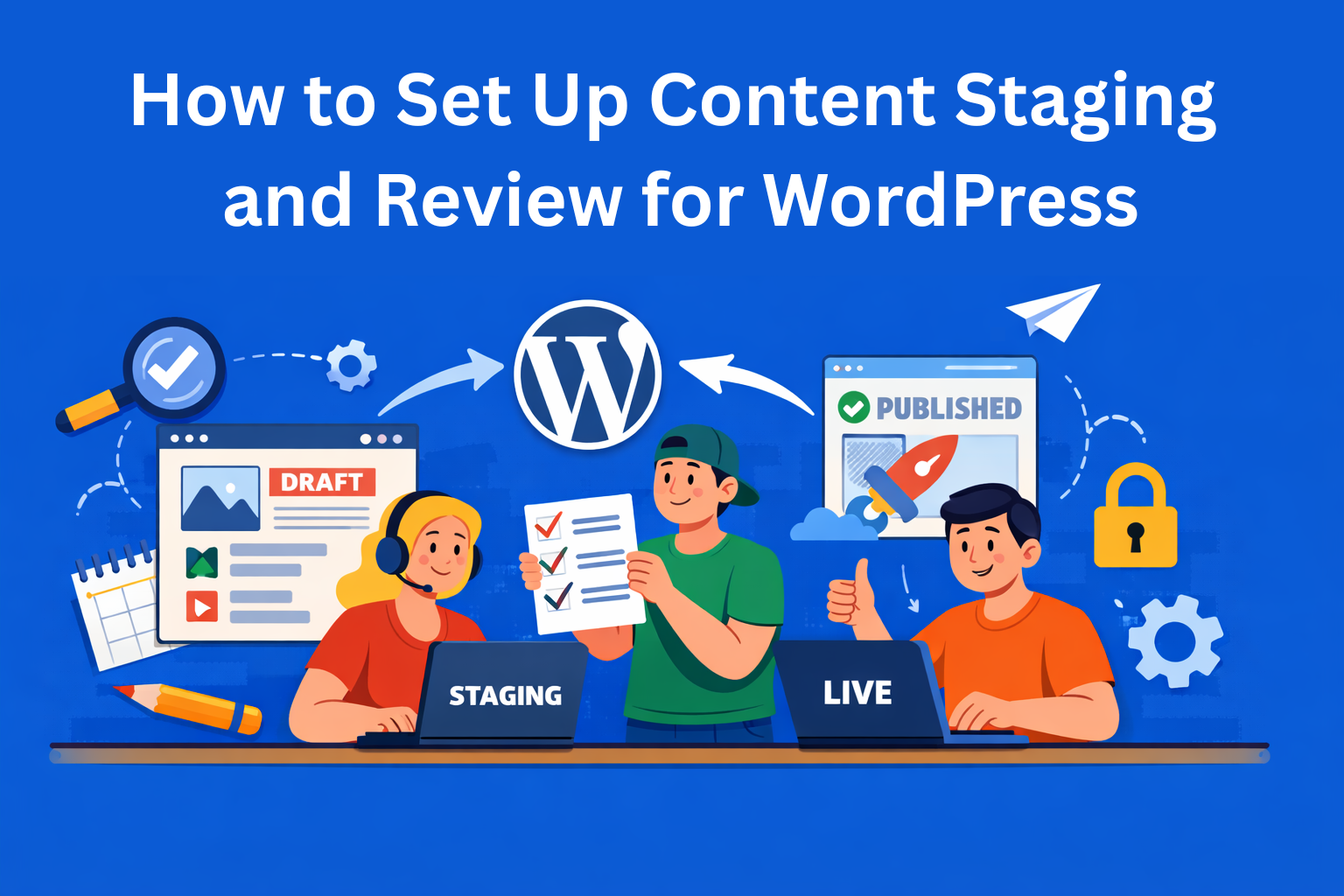
Imagine you own a store and you’re changing the display window while customers are inside. Crazy, right? That’s exactly what happens when website owners edit content directly on their live WordPress site.
Mistakes show up immediately in front of people visiting your site. The solution for this is content staging.
In this blog, we’ll explain what it is, why it matters, and how to set it up, even if you’re not a technical person.
Key Takeaways
- Never edit content directly on your live site - staging gives you a safe environment to test and refine changes without risking public mistakes or broken pages.
- Staging is easy to set up (no dev skills needed) - you can use hosting tools, plugins like WP Staging, or local environments depending on your setup.
- A clear review workflow matters as much as staging - defining roles (writer, editor, approver) prevents confusion and speeds up publishing.
- Use tools to reduce manual coordination - plugins and workflow tools help automate statuses, notifications, and approvals so nothing gets stuck.
- Keep everything structured and controlled - use staging updates, preview links for clients, and documented processes to avoid chaos and mistakes.
What is content staging and why do you need it?
Content staging is a copy of your website where you can make changes without worrying that anyone will see what you’re doing. On that copy, you test, edit, and fine-tune everything until it’s exactly how you want it. Only when you’re satisfied do you push those changes to the live site.
This is especially important for teams where multiple people work on content. Without WordPress staging, it’s easy for someone to publish an unfinished article, upload the wrong image, or accidentally break the page design. Staging basically gives you a safe space to work, while visitors have no idea what’s happening behind the scenes.
What are the ways to set up staging?
There are three main approaches, and each has its advantages.
Option A: Hosting with built-in staging
Many modern hosting providers like WP Engine, Kinsta, or SiteGround offer so-called one-click staging. You click a button, and within a minute you have a copy of your site. This is the simplest option and is recommended for anyone who doesn’t want to deal with technical setup.
Option B: WordPress plugin
If your hosting doesn’t offer staging, install a plugin that does it. The most popular one is WP Staging, which is free for basic use. Go to “Add New Plugin,” search for WP Staging, install, and activate it. The plugin creates a copy of your site where you can work freely. For content staging in WordPress without expensive hosting, this is an ideal solution.
Option C: Local environment on your computer
Tools like LocalWP allow you to run your entire WordPress site directly on your laptop, without the internet. This is great for developers, but for regular content editors it’s probably not the most practical option.
How to organize content review?
Having staging alone is not enough. You also need a clear review process before publishing, known as a content review workflow. Think of it like a newsroom: a writer creates the article, an editor reviews it, and only then it gets published.
WordPress already has a simple built-in status system for each post:
- Draft - the content is being written
- Pending Review - waiting for approval
- Published - visible to everyone
For small teams, this is usually enough. For larger teams, it’s important to define roles.
Who writes?
Who reviews?
Who is allowed to publish?
The WordPress user role system allows you to assign exactly the permissions each person needs.
Tools that make the process easier
If the built-in WordPress options are not enough, these plugins significantly improve your WordPress editorial workflow:
- PublishPress adds advanced statuses like “In Writing,” “In Editing,” or “Waiting for Client Approval.” It also sends automatic email notifications when a post status changes, so everyone on the team knows when it’s their turn. Perfect for agencies.
- Edit Flow is a free plugin that adds an editorial calendar, internal comments, and custom statuses. Great for teams that want full visibility into all content in progress.
- Oasis Workflow is for those who want maximum control. It offers a complete system with task automation and detailed reports on who approved what and when.
- EasyContent allows you to create your own workflow, assign roles to team members, build customizable templates for every type of content, receive automatic notifications about content status, and integrate with WordPress so everything you write in EasyContent can be pushed to WordPress in just a few clicks.
How to organize client reviews?
A common challenge appears when content needs to be approved by a client who doesn’t know much about WordPress. Here you need to be smart and avoid giving them full access to your site, because they can accidentally break something.
One solution is sharing a password-protected preview link. The client opens the link, enters the password, and sees how the page looks, without access to the admin panel. You simply send them the link and password, and they can review the content and send feedback via email.
If the client still needs WordPress access for content review, create an account for them with a Subscriber or Author role. This limits what they can see and edit, while you implement changes based on their feedback.
Tips for better content management
No matter which tool you choose, these rules will make your day-to-day WordPress content management much easier:
Never work directly on the live site - always test changes on staging first. Even a small change can trigger unwanted issues.
Document your process - write clear instructions for your team: who does what, what the review steps are, and who has the final say. Without clear rules, things quickly become messy.
Use notifications - automatic emails when a post status changes mean no one has to manually check what’s next.
Update staging regularly - once a week or month, create a fresh copy from the live site so your staging environment stays up to date.
Check mobile view - always see how the page looks on a phone. More than half of traffic comes from mobile devices.
Conclusion
Setting up a content staging and review process in WordPress doesn’t have to be complicated. Start with what you have: if your hosting offers staging, activate it immediately. If not, install the WP Staging plugin and in about 20 minutes you’ll have a functional testing environment.
Once staging is ready, think about your review process. For small teams, built-in WordPress statuses are enough. For larger teams and agencies, tools like PublishPress, Edit Flow, or EasyContent will significantly improve organization and communication.
Remember that store and display window. Your website is your storefront to the world. Make changes calmly behind the scenes, and only when everything is ready, let people see it.